Showing posts with label Application. Show all posts

Wednesday, October 17, 2018

Free Online Application to Merge your PDF


Sometimes when we work with an unsupported laptop or mobile phone and we know that there is a possibility a limit access to do.   
Something that looks urgent to solve. It can annoy us a lot, doesn’t it?

I have had several challenges in working with some demands in attaching several PDF documents, and as far as i knew that these could be done when we use a scanner. I was wrong yesterday. The fact is there are a lot of PDF merge online webs to support your needs.

I prefer to share you a website called  PDF Merge.com. Because this online website has several advantages to work out with all your needs. You may learn by yourself on this website; as I mentioned you previously that I will share you only several steps to merge your PDF
These are the steps:

1. Prepare your PDFs that you need to merge.

2. Go surfing this link ðŸ‘ˆ
3. Select the sub menu “CHOOSE FILE” and there will be an open communication to surf a folder which you put the PDF file to be merged. 


Continue it by selecting the pdf file and after you select the file then you will be directed to the main menu and please check that your chosen file is mentioned inside the small Column near the sub menu “choose file”

4. Continue with the same way as the third step above (choose file- surf the folder- choose the 2nd target PDF- check inside the small column) you may have an opportunity to do many pdf files to merge. Just press the green sub menu “MORE FILES”


5. When the two PDFs already been uploaded, press the “MERGE FILE” and let the merged process begins. 


6. You will be shown the pop menu, how will you choose with the saving process, just choose the
option “VIEW AND DOWNLOAD IN BROWSER”. Then you will be directed to view the result...Holla!!!! We have merged the PDFs. Continue with saving process as usual, press copy right on your menu and choose save as and you are free to put in which part of folders you want to.


Write me your comment if you need to ask more. Happy to use the free online website!!!


Saturday, September 29, 2018

Barcode Scanner Application on Your Hand

Hello readers,
Today i am going to write you about the useful of barcode scanner  called ZKING BARCODE SCANNER Project.
Barcode Animation
 Why  do i have to suggest you using this apps? Because it’s very simple to help you to find any product you want to ensure or perhaps you want to buy any tool you have on the internet.

Principally, a barcode scanner “scans” the black and white elements of a barcode by enlightening the code with a red light then converted into matching text The system  interprets that signal, validates the barcode using the check digit, and converts it into text.


So, let’s cut the crab:

1. Download the application on Google play store at this link
2.  Download and install on your android phone
3. Prepare any barcode found on any device(  on this topic, i am using the adapter  charger for my Toshiba)
Adapter charger as the targeted of the example process 


4. Please open the application from your android phone and try to focus on the box bar camera near by the barcode sticker on your targeted  device which you need to scan.
My Adapter charger as the targeted experiment :)

5. If the scanning process goes on the right track 
then your barcode application will show you the  several numbers ( format code) inside the screen capture
G71C0009T111 is the format code of my device 

6. Continue the process by pressing the “WEB SEARCH “ menu 
Continue your process by selecting the web search on your mobile phone


The results of scanning process appears on google
And you will be forwarded to google search engine and it will provide you with the several information from websites  and through that way, you can expand any information or any action by yourself  such as buying the new one adapter or just only checking about “ the originality “ . 

Well, thank you so much for your time and see you on next topic. 


Tuesday, January 9, 2018

How To Remove The Review and Comment On Microsoft Office Word 2011


Hi Readers,


When you are doing a thesis or report, you deal with some feedback or reviewed on your paper page. Please take a look at the picture on beside. 


We sometimes do not know exactly how to remove the reviews noted in your Office 2013.
So, I would give you tips below. Enjoy reading. ....

1.  Click File menu on the left corner of your document page


2. Click “inspect document “ 


3. Click its’ sub menu – Inspect Document


4. A pop up notification from system will ask you to save or to continue the deleting process for any comment reviewed. You may press "No " to continue the process


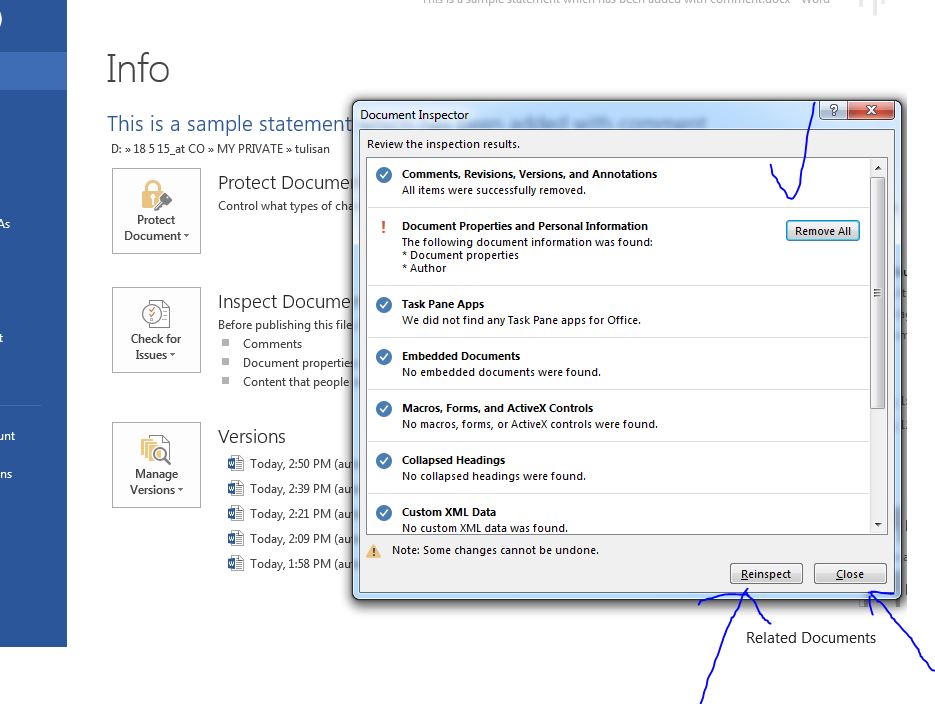
5. On the next step, let’s consider that you have chosen to save and continue to erase the comment; you may press “No “button" and you will see the document inspector list to check. Please be sure to thick the thick box from “comment, revisions, versions and annotations”.  


6. Continue your steps by pressing the inspect document button and on press “the remove all “button for “comments, revision, versions, and Annotations “. 


All comments will be deleted and you may re-check with the "reinspect " menu and if it's done, now you can close your work by pressing the " close " sub menu and continue it with saving steps. 


Congrats.. Now you have removed the reviews, comments from your document paper 

Any questions, please leave your comment and i will reach you as soon as possible.